How to install Office 365
This guide will walk you through downloading and Installing the desktop versions of Office 365 Apps. This include word, Excel, Powerpoint, etc.
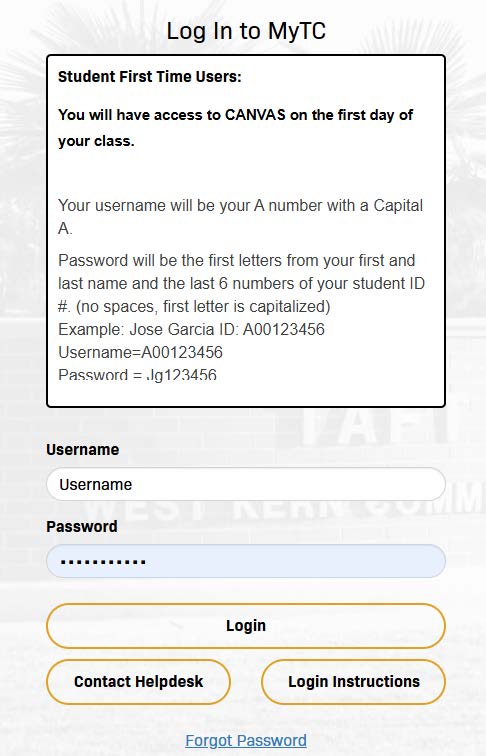
1: Sign in to MyTC
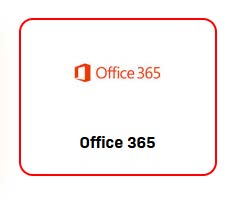
2: Select “Office 365”
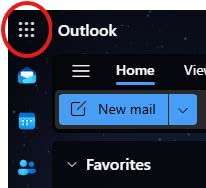
<div aria-label=”Step 3 of 9″>3: Select the app launcher on the banner</div>
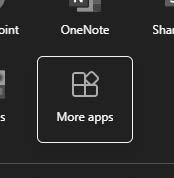
4: Select “More Apps”
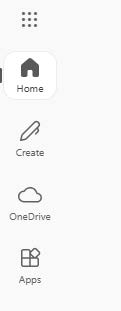
5: On the Left Rail App bar Navigation, select “Home”
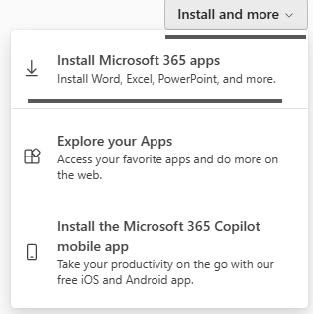
6: On the main area, select “Install and more”, then select “Install Microsoft 365 apps”
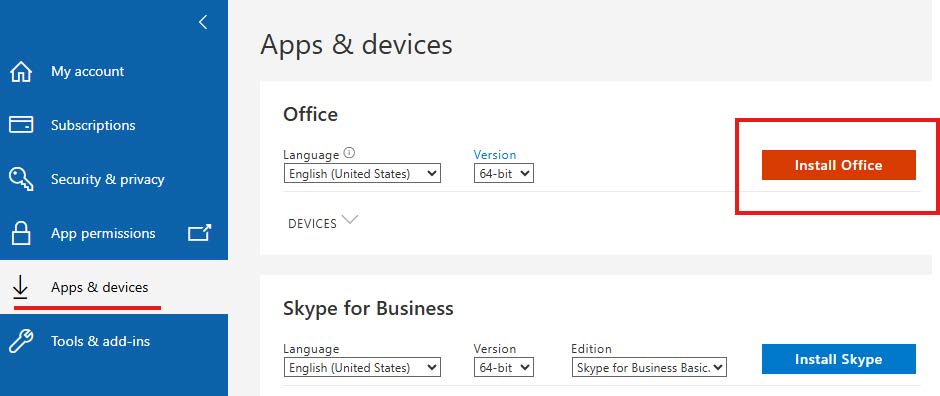
7: On the Navigation pane, select “Apps and devices”, and then select “Install Office”
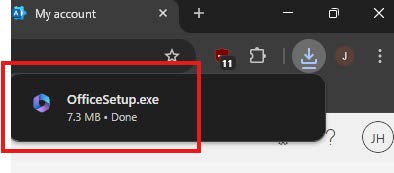
8: This will begin the installation. In your downloads, select the OfficeSetup.exe that appears. Follow the prompts to complete the installation on your device.
9: If you have any issues with this process, please reach out to the IT department at 661-763-7737